Chatroom settings
In this section, you can view, add, and modify your company’s chatrooms through a table containing the following columns:
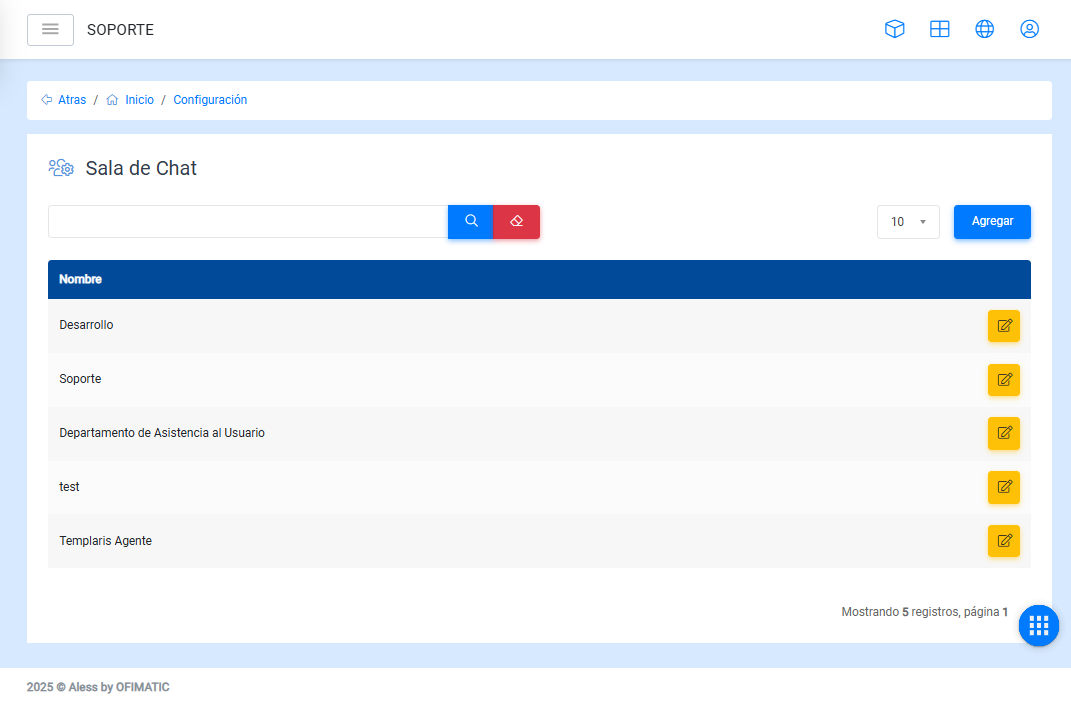
- Chatroom: displays the name of the chatroom or group.
- Options: allows you to edit the chatroom.
Table information
In the table, you can:
-
Find a chatroom using the
Searchoption, located below the upper-left corner. -
Modify the number of chatrooms displayed per page.
Add or edit chatroom
To add a chatroom, click the Add button located in the upper-right corner and enter the name of the chatroom you want to create.
A form will then be displayed with the following fields:
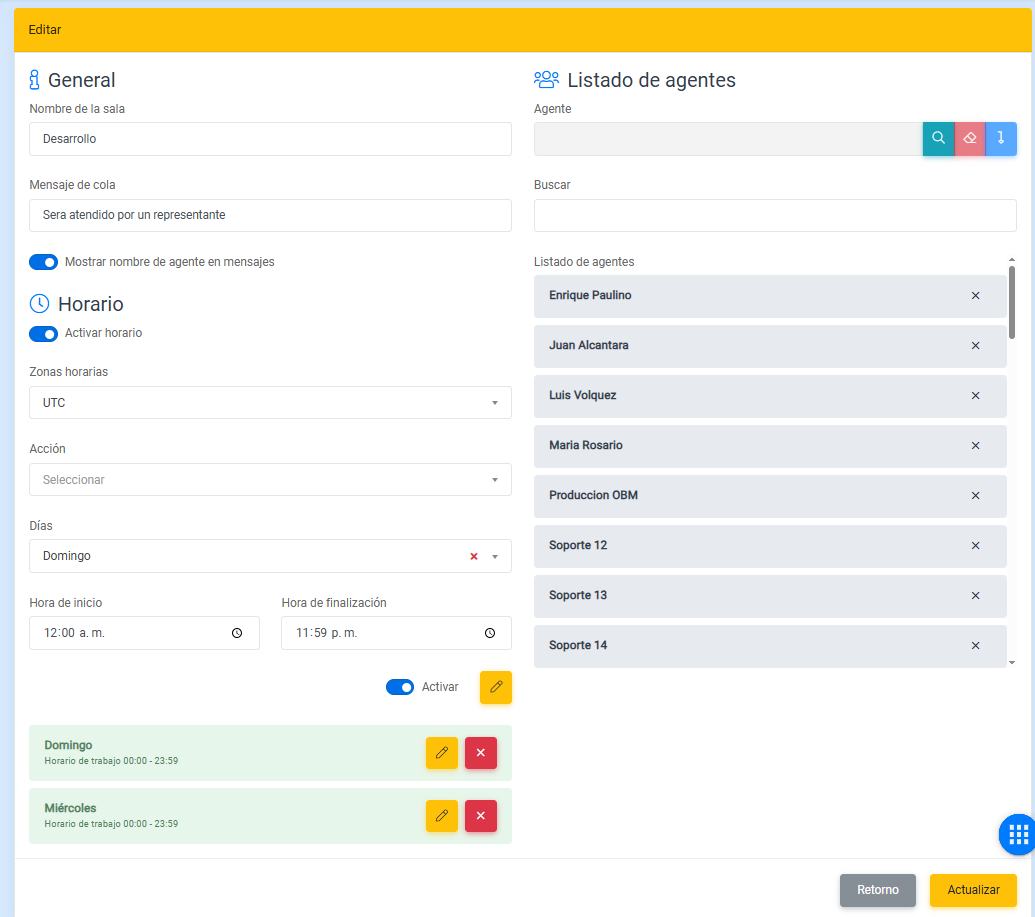
- Room name: allows you to enter the name of the new chatroom.
- Queue message: allows you to add an entry message that will be displayed when a user is transferred to the chatroom.
- Show agent name in messages: if enabled, users will receive the name of the agent assisting them in each message sent by that agent.
- Agent: allows you to add the group of agents associated with the chatroom.
Schedule
This section allows you to configure the service schedule that the chatroom will have for users.
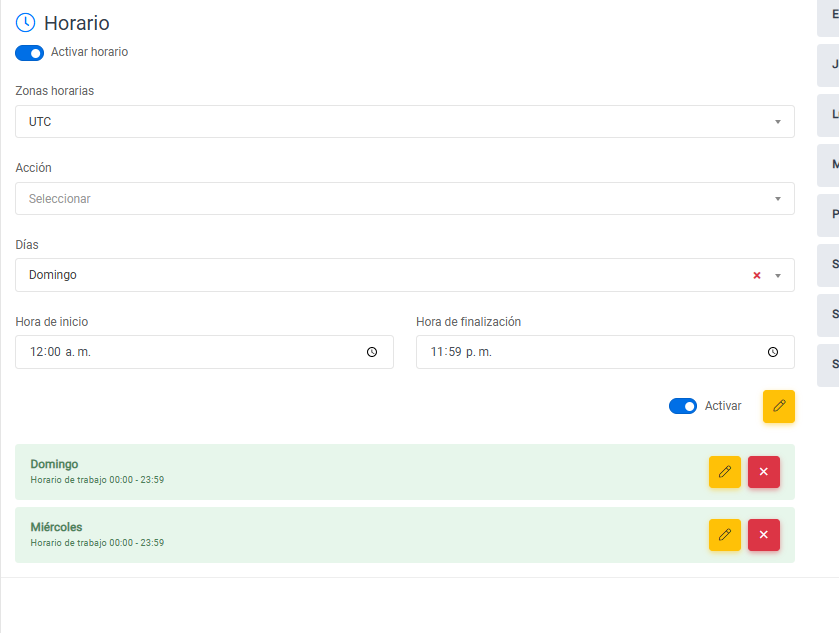
This section displays the following fields:
- Enable schedule: indicates whether the chatroom schedule will be active.
- Time zone: indicates the time zone configured for the chatroom. For more information about time zones, see the following link.
- Action: allows you to execute a script if the chatroom is outside business hours.
- Days: indicates the days on which the chatroom will be active.
- Start time: time when the chatroom starts operating.
- End time: time when the chatroom stops operating.
- Enable: indicates whether the selected day is active or inactive.
- Edit / Add: allows you to edit or add the selected day.