AI models
In this section, you can view, add, edit, or delete the AI models that the AI Agent will use.
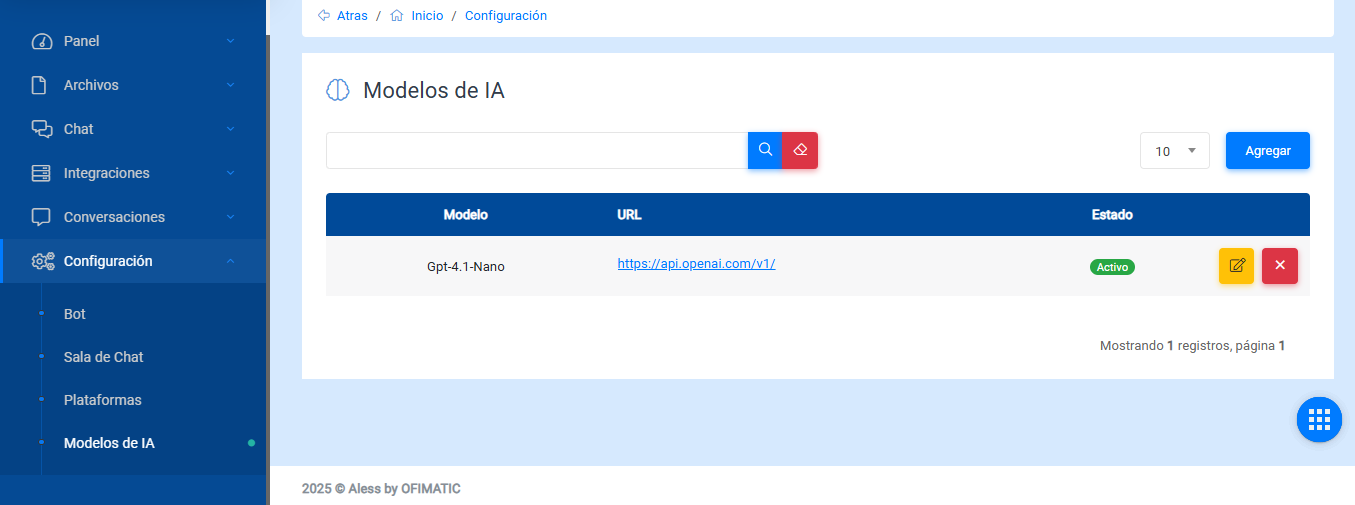
- Name: displays the name assigned to the registered model.
- URL: displays the URL used by the model.
- Status: indicates whether the model is active or inactive. By default, this option is enabled.
- Options: allows you to edit or delete the model.
- Add: allows you to add a new model.
Create or edit
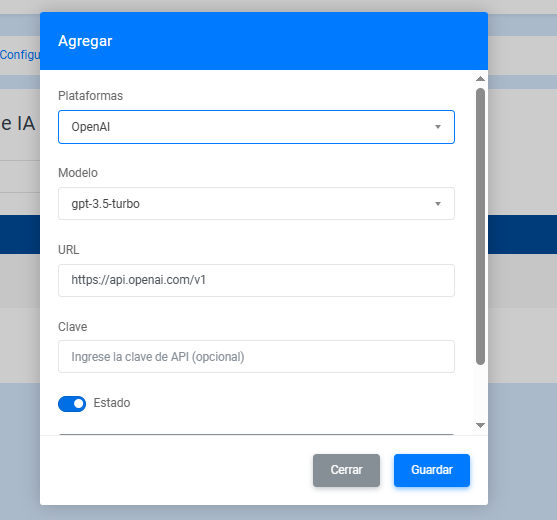
- Platform: indicates the platform to which the model belongs. Currently, the platform includes preconfigured options for OpenAI and Gemini. To use another platform, select
Custom. - Model: allows you to enter a name related to the API you are adding. If you select OpenAI or Gemini as the platform, this field will display a drop-down list with the available preconfigured models.
- URL: allows you to enter the API that will be accessed. If you select an OpenAI or Gemini model, this field will be automatically filled with the URL of the selected model.
- Key: allows you to enter the API key. This field is optional.
Advanced configuration
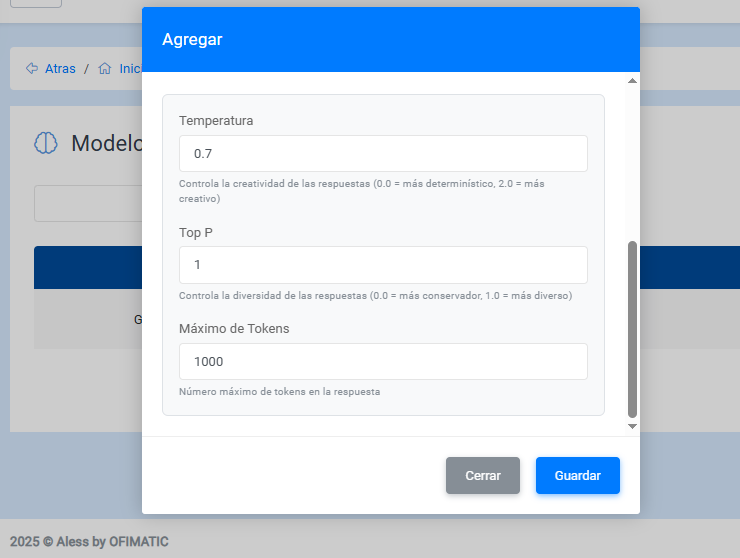
- Temperature: controls the creativity of the responses. A value of
0.0generates more deterministic responses, while a value of2.0generates more creative responses. - Top P: controls the diversity of the responses. A value of
0.0generates more conservative responses, while a value of1.0generates more diverse responses. - Maximum tokens: indicates the maximum number of tokens allowed in the response.
- Close: returns to the AI models view without saving the changes.
- Save / Update: saves the changes made.