Configure your Facebook developer account
This guide explains how to configure a Facebook developer account. This process applies to WhatsApp, Messenger, and Instagram.
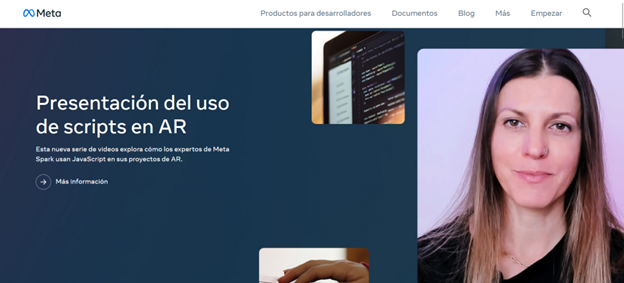
- Register or log in with your Facebook account at Facebook for Developers.
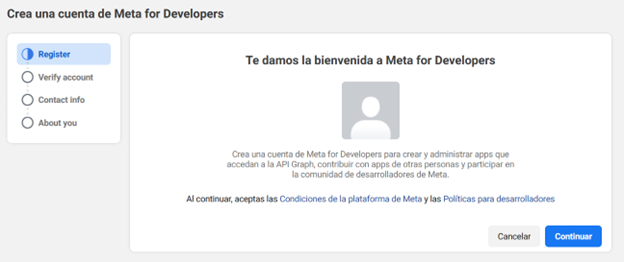
Note
You must complete the account verification process using a mobile phone number and an email address.
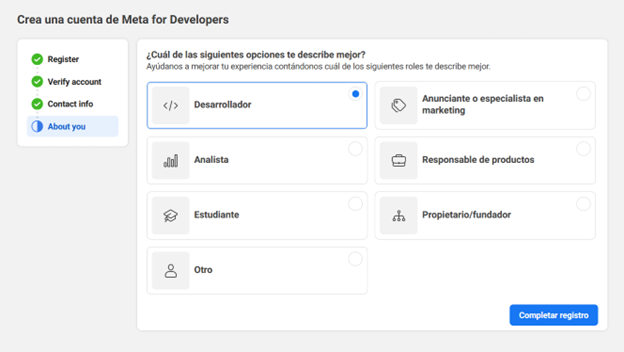
Once this step is completed, select the option that best describes your case and complete the registration.
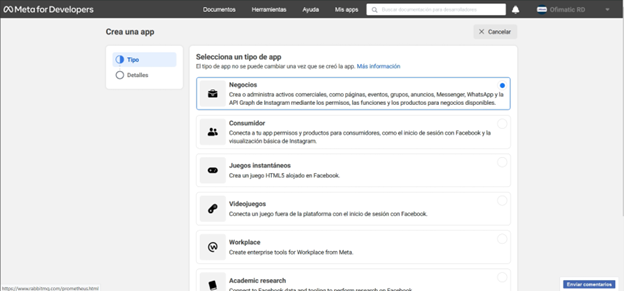
- Once inside the Meta for Developers platform, click Create app.
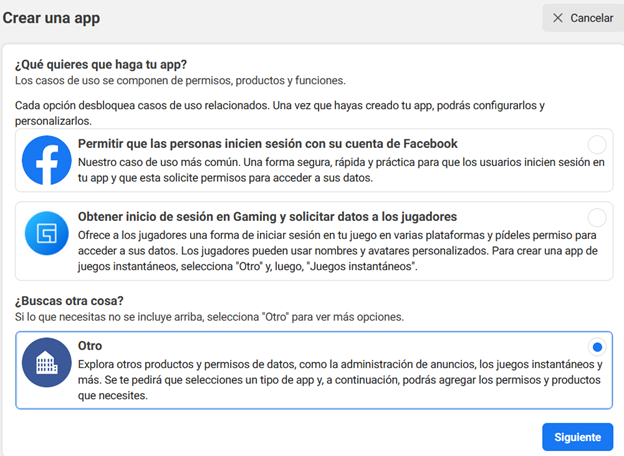
Select Business as the app type and click Next.
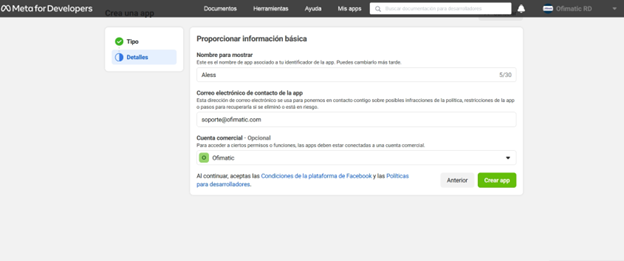
- Provide your business information. If you do not have a Business Manager account, you can leave this option unselected.
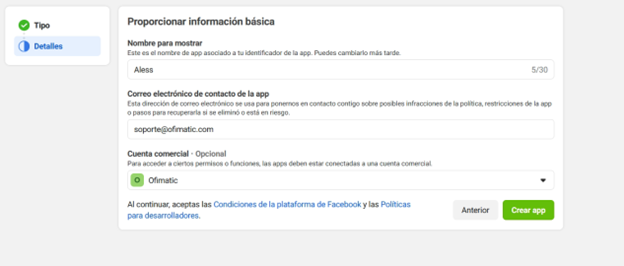
- Click Create app. You will then be redirected to the Meta dashboard.
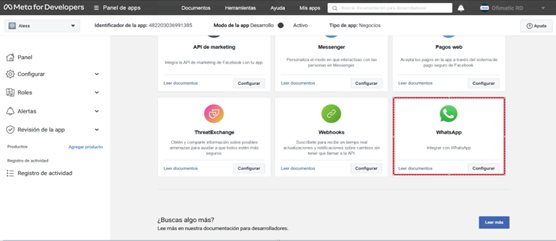
- Scroll down until you find WhatsApp and click Set up.
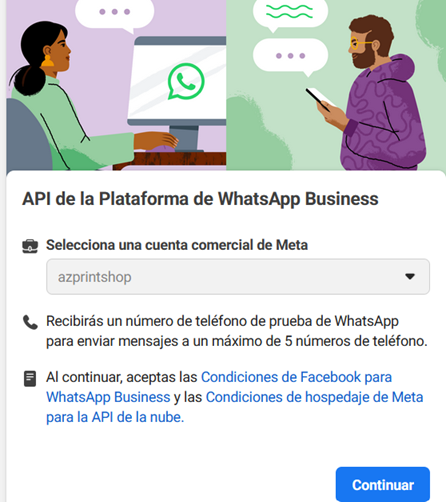
- Click Start using the API to accept the WhatsApp Business terms and conditions.
If you left your Business Manager account unselected in step 3, you can leave this option unselected here. Facebook will automatically create a Business account later.
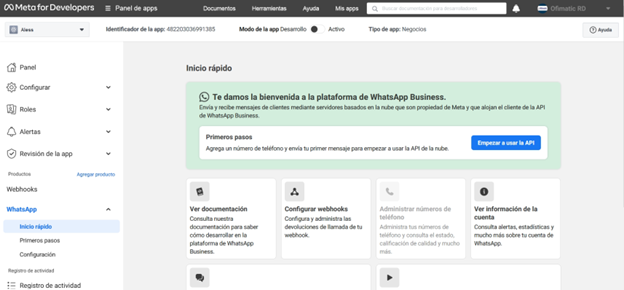
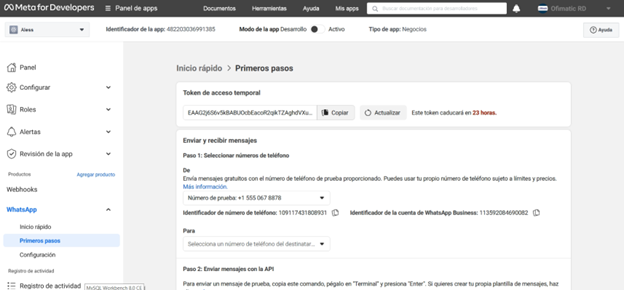
- Send a message from the test number generated by WhatsApp to your personal or business WhatsApp number to confirm that the integration was completed successfully.
Considerations
Keep in mind that this step is optional. You can skip it and add your phone number to your WhatsApp Business account. The next section explains how to complete this process.