Chatroom
In this section, you can view, interact with, and close conversations being handled by an operator through the conversation manager.
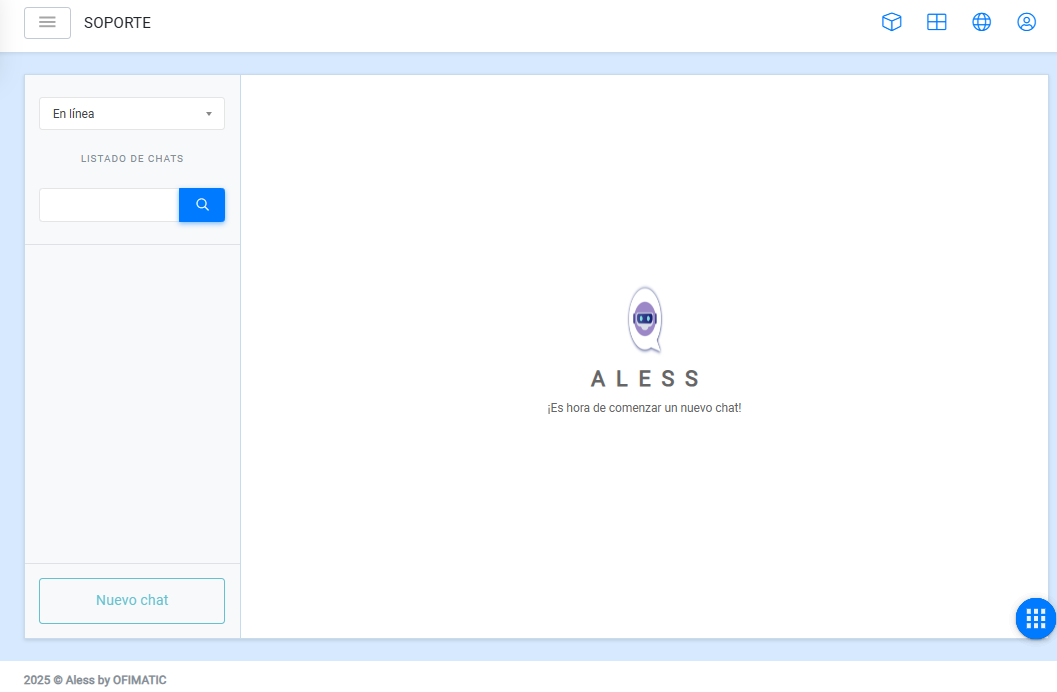
Search for your users
Here you can manually search for users using the identifier configured in the bot.
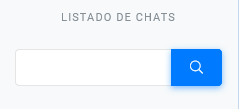
Chat history
In this section, you can view a list of the conversations currently being managed.
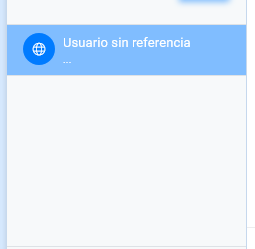
Keep in mind
Conversations will not disappear until the operator closes them.
New chat
This button allows you to receive incoming new conversations. If the auto-assignment feature is enabled, it is not necessary to press this button.
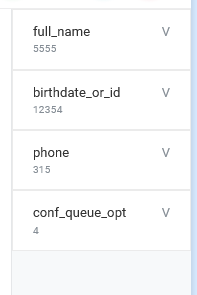
You can also view the flow variables and the information associated with each one.
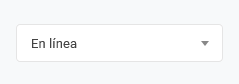
Status
This button allows you to indicate whether the agent is active or unavailable.
Considerations
Using the transfer button located in the upper-right corner, you can transfer conversations both to agents within your department and to another department.

Agent functions in a conversation
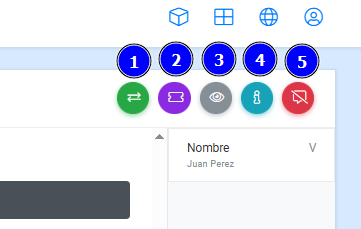
- 1: Allows you to transfer the conversation to another chatroom or another agent.
- 2: Allows you to create a ticket in the SmartQueue platform.
- 3: Allows you to view the previous conversation, if one exists.
- 4: Allows you to enable or disable the variables panel, which displays the information stored in the conversation, for example, the name Juan Perez, as shown in the image.
- 5: Allows you to close the conversation.