Edit messages
In this section, you can edit the content and order of the messages contained in a script by completing the following fields:
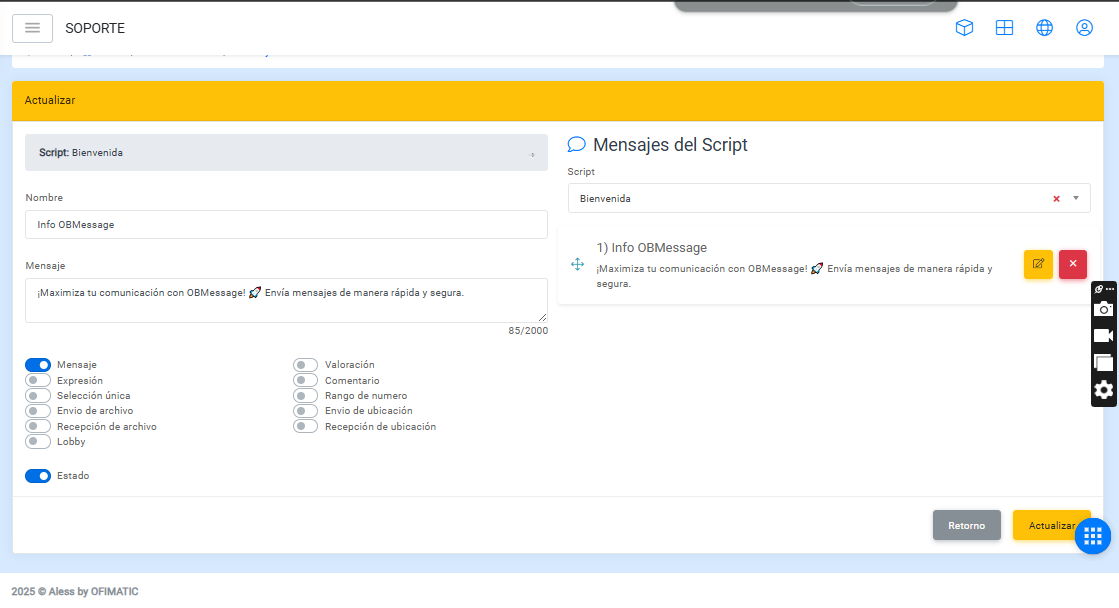
- Script: allows you to choose the script that contains the message you want to edit.
- Name: allows you to view or modify the name of the message.
- Message: allows you to view or modify the message content.
- Return: returns to the message window without saving changes.
- Update: saves the changes made to the message.
Update note
If the message already has an associated script, 3 options will be displayed when updating:
- Update-Add: saves the changes and adds the message to the script again. This is used when you want to have the same message more than once within the script.
- Update: saves the changes made and returns to the message window.
- Cancel: returns to the message window without saving changes.
Message options
The following are the options a message can have:
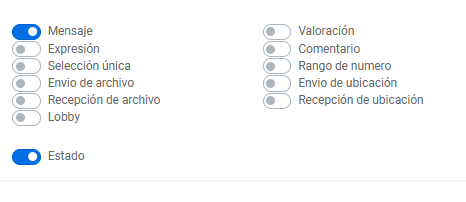
- Message: default option that indicates the message is outgoing only, meaning it does not expect a user response.
Generic message
- For a message to be generic, it must not be associated with a script.
- This option is used to create inactivity messages when the conversation ends due to lack of interaction.
- In the bot settings, there are 3 message types where generic messages are selected.
- Expression: used to define the behavior or action that will be performed if the user input matches the expression configuration.
- Single selection: allows an action to be performed depending on the option selected by the user.
- File sending: used when you want the message to include a file that the user can download.
Sticker sending
Stickers can be sent to users to further personalize conversations. To do this, keep the following points in mind:
- Images must be in
.webpformat. - They must have a size of
512x512. - If the sticker is static, it must have a maximum size of
100 KB. - If the sticker is animated, it must have a maximum size of
500 KB. - If these conditions are not met, WhatsApp will not send the sticker to the recipient.
- Lobby: allows you to send a message and then route the conversation to a department or chatroom.
- File reception: used to indicate that the message will receive some type of file from the user, which will be stored by Aless.
- Rating: used to ask the user to rate their experience with Aless on a scale from 1 to 10.
- Comment: used to ask the user to write a comment about their experience with Aless.
- Number range: allows you to limit the customer’s response to a range between a minimum number and a maximum number.
- Location sending: allows you to send the user an address connected to the map application they have installed.
- Location reception: allows you to request or receive the location sent by the user.